Run refinement without slowing the team down.
Choose a team, prepare or add work, invite the room, and estimate together. This guide covers the application as it works today.
Getting started
Select the correct team, then choose your own name from its roster. Your browser remembers your choice, but you can choose a different name before entering.
- Choose a team.Use the purple team navigation on the landing page.
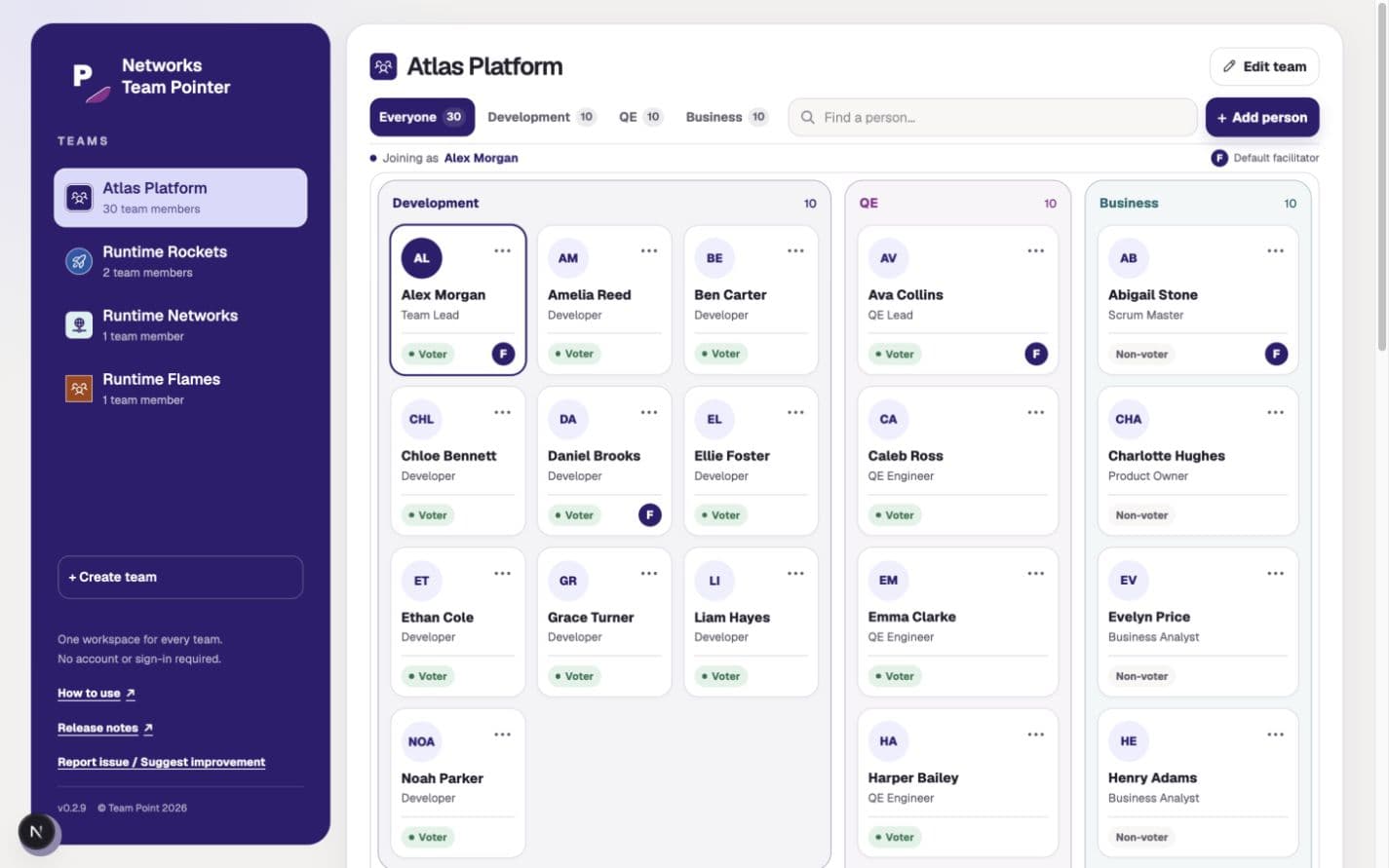
- Find and choose your name.Select your own card. When the new portal is enabled, search the roster or use Everyone, Development, QE, or Business; use the ellipsis only to manage a person.
- Prepare work items, if useful.Expand Before the room → Prepare work items to add items, or leave it collapsed and start with a blank item. The count stays visible when collapsed.
- Choose Room options, if needed.Open Edit team → Room options → Edit room options to configure the next refinement. Choose Done to return to the roster.
- Enter team room.Use the same team link every time. Entering does not start voting: a facilitator chooses Start refinement.
When the new team portal is enabled, Everyone shows Development, QE, and Business side by side, with more space for Development. Each group lists people alphabetically; its cards wrap into new rows within that group. An Observer group also appears when the team has observers. Use a group tab to see just that group across the available width, with cards arranged three across when space allows. A Voter or Non-voter label shows voting eligibility; the purple F marks a default facilitator. These are team defaults, not live connection or current-round statuses. If the portal experiment is off, choose your name in the familiar grouped roster and use Edit team for changes.
Searching or switching group tabs does not choose a different identity for you. Confirm your selected name before using Enter team room. To add or update someone, see Team maintenance.
The name cards expand naturally with the page; there is no separate scrolling list or four-card limit. Scroll the page to see more people, preparation, and room entry, or use Tab to reach each card and its menu. The compact team heading and controls leave more room for names: group tabs, search, and Add person share a row when space allows and wrap when needed. Collapsing Before the room hides the preparation form without clearing an unfinished title or description. Room settings are kept under Edit team, rather than taking up space on the name-selection page.
Structured is best for deliberate reveal, discussion, revoting, and accepting an estimate. Quick is best when the team needs to move rapidly through lightweight items.
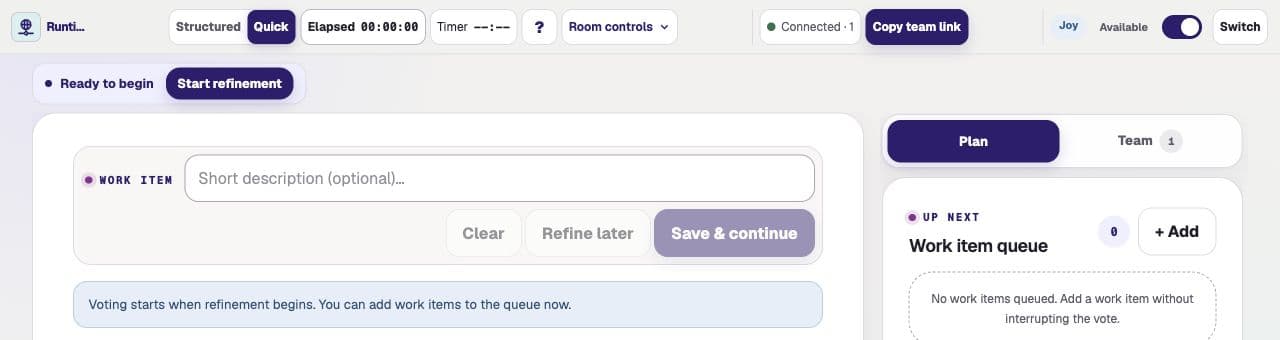
Room workspace
The connection indicator describes the live network connection. The Available / Away switch beside your name controls participation: Available means ready to vote; Away means temporarily sitting out, even while connected. Switching to Away keeps your submitted vote.
Use Copy team link to share the permanent team room, rather than an old session's review link. Each person follows it and chooses their own name.
Use Room controls for a break or to finish the session. The guide below shows Pause, Resume, End, and the session summary.
When enabled, Halloween uses a dark plum appearance by default, with friendly ghosts, black cats, and character artwork on the team portal and voting room. A pumpkin farm sits below the comparison meter, not inside it: a softly painted distant farmhouse, cartoon pumpkin rows, a friendly weathered scarecrow, and low drifting mist. Seasonal lettering asks, “Why did the vampire hate refinement?” followed by “Too many stakeholders.” It sits directly in the scene with a slight tilt, dripping-red letters, and a soft shadow—not a separate banner. It is just a joke—not a room status or control. The wording and scenery stay still while the mist drifts and occasional tiny red droplets fall beneath the punchline. Smiling ghost markers float above soft pulsing shadows and keep each voter's initials and full-name tooltip. Hover or focus a ghost to hold it still while reading its name. Popups and room controls match the dark appearance too. The normal theme stays light when Halloween is off. The number or ? on each card is still its exact vote. Decorations do not change eligibility, reveal rules, room controls, or history. Use Pause Halloween animations to stop all movement, including the mist and joke droplets; the static lettering and blood shapes stay visible. Your device's reduced-motion preference is also respected.
The member-selection header has a haunted mansion with warm lit windows, layered drifting fog, flying bats, and orange-and-black Happy Halloween lettering. The fiery jack-o’-lantern sits in the foreground, with moving flames inside its narrowed eyes and jagged grin. About every 3.5 seconds, a thin, irregular lightning strike traces diagonally from upper-left to lower-right across the mansion, with a white-hot channel, soft blue glow, and finer branching filaments—not a filled lightning icon. The mansion and greeting darken between strikes and light up together with a short two-pulse movie-style flicker. Neither moves, and the lightning never flashes the surrounding scene, people cards, or controls. Pause Halloween animations and reduced motion hide the bolt and leave the mansion and greeting steadily dim, while stopping the fog, bats, and flames without removing the scenery. Small webs, friendly ghosts, and dim fireflies decorate the edges of the people groups. Names, initials, titles, voter labels, and facilitator badges stay unchanged, and the decorations never capture clicks. The same pause control and reduced-motion preference stop their movement too. The sidebar keeps its cat beneath a softly detailed moon. Seasonal animation cycles run 1.5× faster, including the floating ghosts, swaying hats, flapping wings, potion bubbles, glows, and ground mist. Only the artwork moves: the vote numbers and room timers are unchanged. Hovering or focusing a card pauses its artwork, and disabled cards stay still too.
The mansion header forms one continuous Halloween landscape, not separate floating decorations. A small graveyard sits on the left, with skeletons emerging from the ground and facing you; layered jack-o’-lanterns form the pumpkin patch on the right. Shared ground and low mist connect both sides to the mansion. The skeletons' jaws laugh continuously with staggered timing, while the nearer pumpkins give little mouth chuckles and the distant pumpkins stay still. Gentle candlelight and drifting fog add depth without rapid flashing. Pause animations and reduced-motion settings stop the laughing jaws and mouths too, leaving the landscape visible and still. The scene adapts to the available space without covering the greeting or team controls.
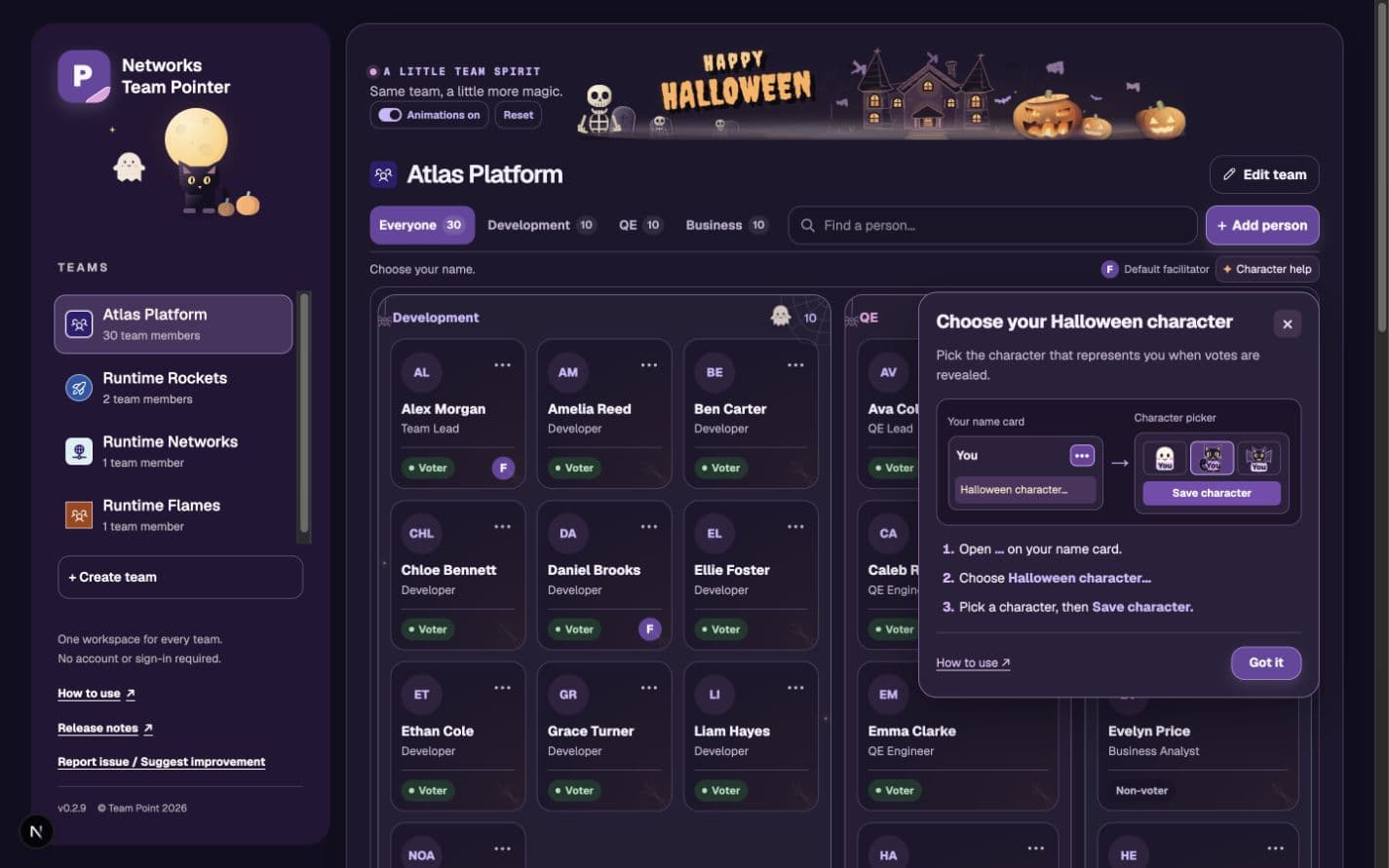
Choose your Halloween character
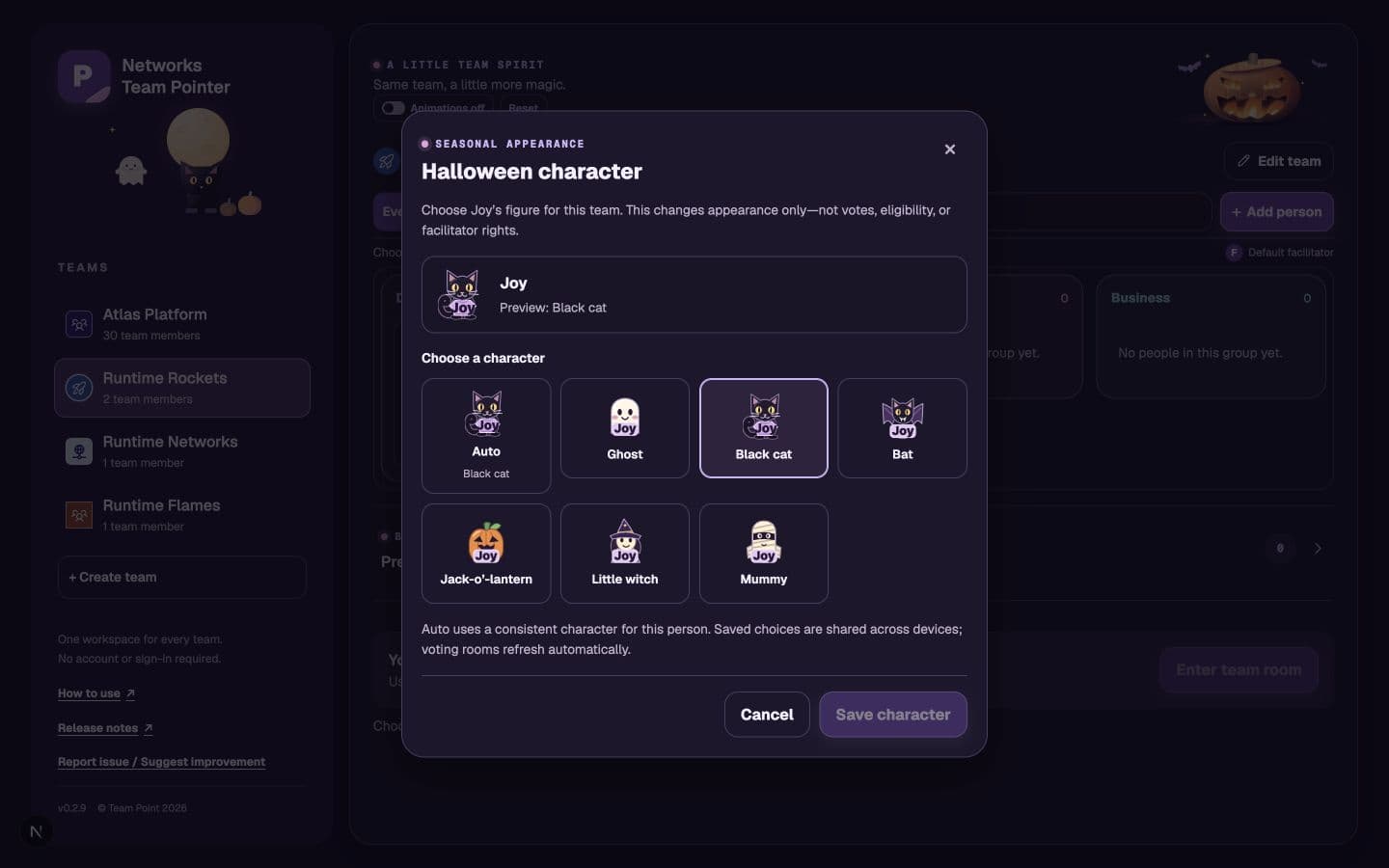
Each person automatically gets a consistent ghost, black cat, bat, jack-o’-lantern, little witch, or mummy. Joy defaults to the black cat, with her name on a lavender sweater. Auto assignments stay the same when names or card order change. Full-name tooltips, vote positions, and counts stay the same.
When Halloween and the redesigned team portal are enabled, a small illustrated tip introduces character choices. It does not block name selection or move keyboard focus. Choose Got it or close it to remember dismissal in this browser. Reopen it using Character help beside the facilitator key; its How to use link opens these instructions in a separate tab. Clearing browser storage or using a different browser may show the tip again. If browser storage is unavailable, use Character help to open it yourself. The tip stays out of the way while editing a person or character, removing someone, or reconnecting.
To choose a figure, open the person's … menu on the team portal, then Halloween character…. Select a character or Auto, check the preview, and choose Save character. Cancel leaves the saved choice unchanged. Choices are shared for that person on that team, not across all teams. Open voting rooms refresh automatically within about 30 seconds, or when you return to the tab. If someone edits the team while the picker is open, review the latest values before saving again. The picker is available only when Halloween appearance is enabled; it never changes the selected identity, voting eligibility, or facilitator rights.
The portal layout and Halloween appearance are separate switches. Changes take effect after a full page reload, not halfway through a vote or an unsaved edit. If the switches cannot load, the familiar layout is used without Halloween decorations.
See optional Halloween examples
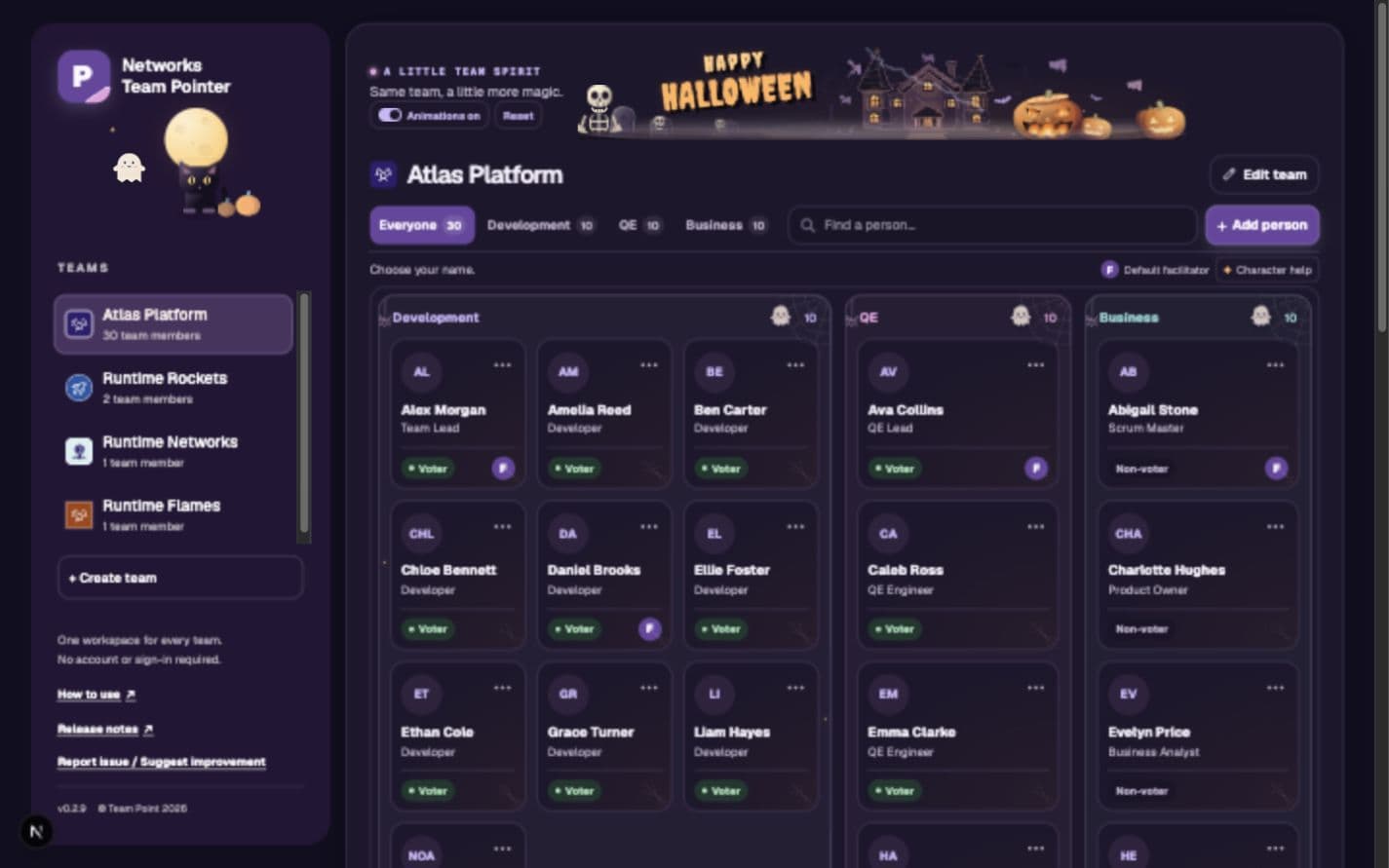
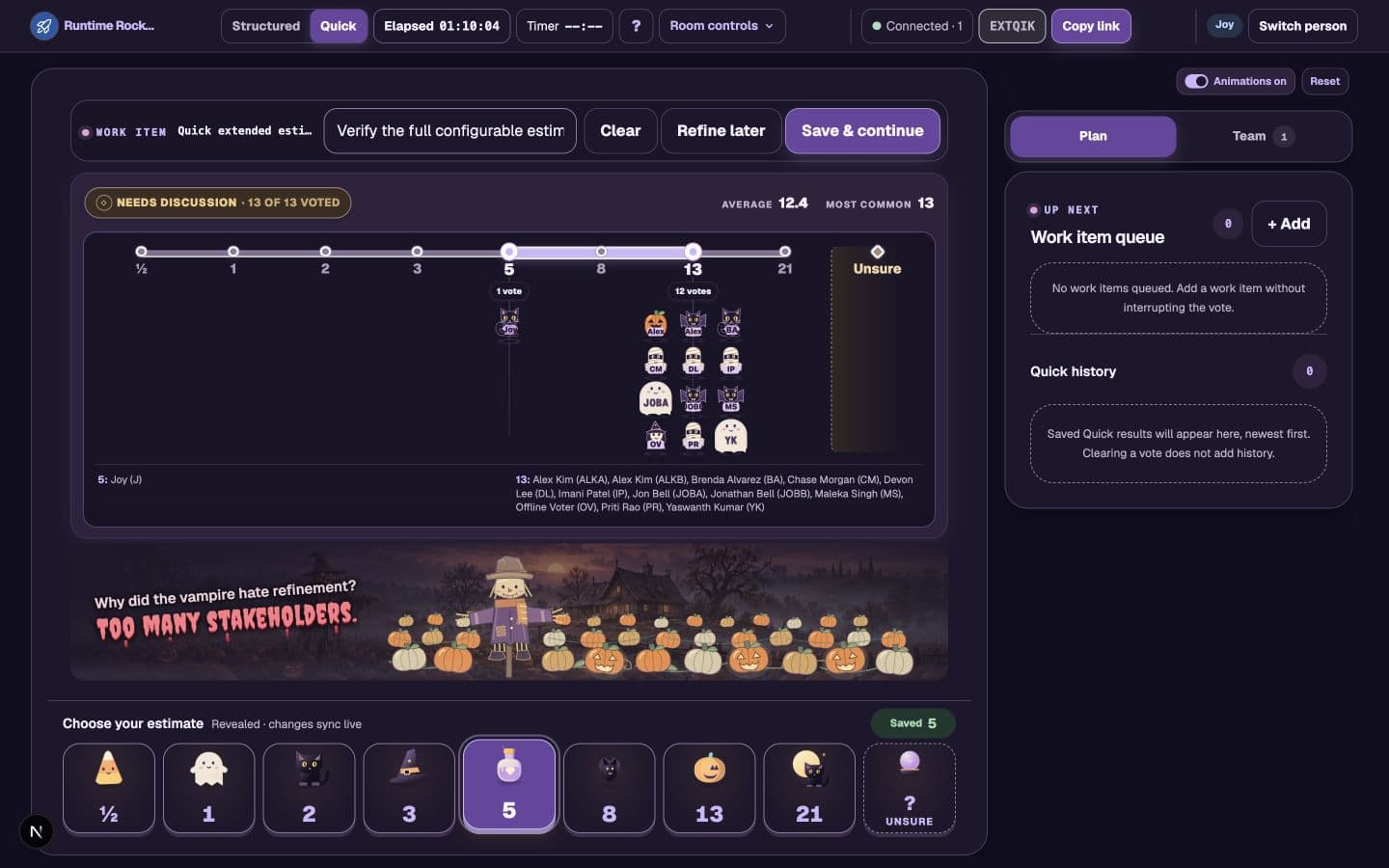
In Team, the purple F marks a facilitator. Facilitators see a remove icon on other people's cards; hover for Remove from room. You cannot remove yourself with this control. Removed people can immediately rejoin through the same team link. Their team membership, facilitator assignment, submitted votes, and history remain intact.
Disconnected means the live connection was lost. Out of room means the person no longer owns a seat in this room; it does not mean they were deleted from the team. Not voting is their eligibility, not their connection state.
Voting
Eligible voters choose one of the room's configured estimate cards. The complete catalog is ½, 1, 2, 3, 5, 8, 13, 21, and ?. Recommended, Fast voting, and Structured refinement presets keep the original six numeric cards by default.
Before reveal, select your chosen card again to withdraw your vote and return to Waiting. Select another card to replace it, or vote again after withdrawing. Keyboard shortcuts work the same way. After reveal, votes cannot be withdrawn; Quick live edits remain available when enabled.
A private vote is saved for this round.
An available eligible round voter has not voted yet.
The person chose to sit out. Their existing vote still counts. Connection loss is shown separately as Disconnected.
The person is present but not part of this electorate.
? means Unsure. It is a submitted vote and counts toward readiness, but it is never treated as zero and cannot be accepted as the final estimate. Every configured deck includes at least one numeric card.
Facilitator authority and voting eligibility are independent. A team lead may facilitate and vote, while a scrum master may facilitate without voting.
Returning to Available or rejoining before reveal restores current-round participation, including a retained vote. A previously excluded person who returns after reveal waits for the next round.
Reveal and alignment
After reveal, the comparison meter places voters on the enabled numeric scale and in a separate Unsure bucket. It shows the numeric span and average, most-common value or values, vote counts, and alignment state.
- Structured rooms normally reveal when a facilitator chooses Reveal.
- Quick rooms normally reveal automatically when the eligible electorate has voted.
- Quick facilitators can also choose Reveal votes once at least one vote exists. Partial participation stays visible; no estimate is accepted automatically.
- Quick voters can keep changing estimates after reveal so alignment updates live.
- Numeric average and range ignore Unsure. Mixed numeric and Unsure votes need discussion; an all-Unsure result is Unclear.
- A tie, wide spread, or uncertainty does not prevent a facilitator from preserving a Quick result.
Queue and progress
Any active participant can add a work item to Up next without interrupting the current vote. Facilitators control actions that change the active flow.
Settings and timers
Open Edit team → Room options on the team page before refinement. Room options appears above the member list. Saved options persist for the team and are captured when a facilitator starts the session. Options stay fixed until that refinement finishes; later team changes apply to the next refinement.
Choose Edit room options → Essentials for the common choices. Choose a preset, review its behavior, then use Save team defaults. Cancel lets you discard unsaved changes. If someone else saves first, reload the latest values before trying again. Choose Done in Edit team to return to name selection; your selected identity is kept.
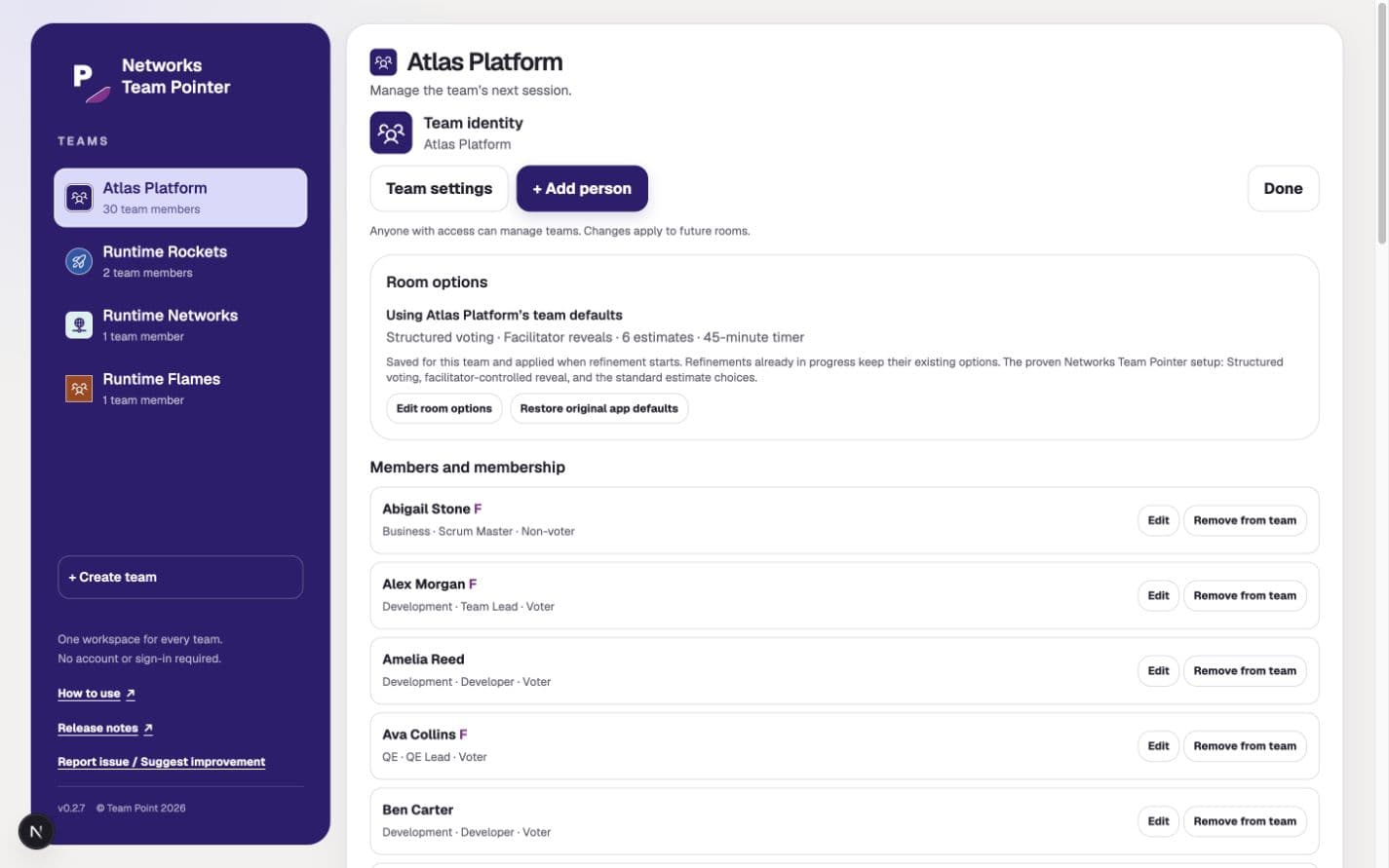
- Team defaults define the starting behavior of each new refinement.
- Session snapshots preserve the options used for that refinement.
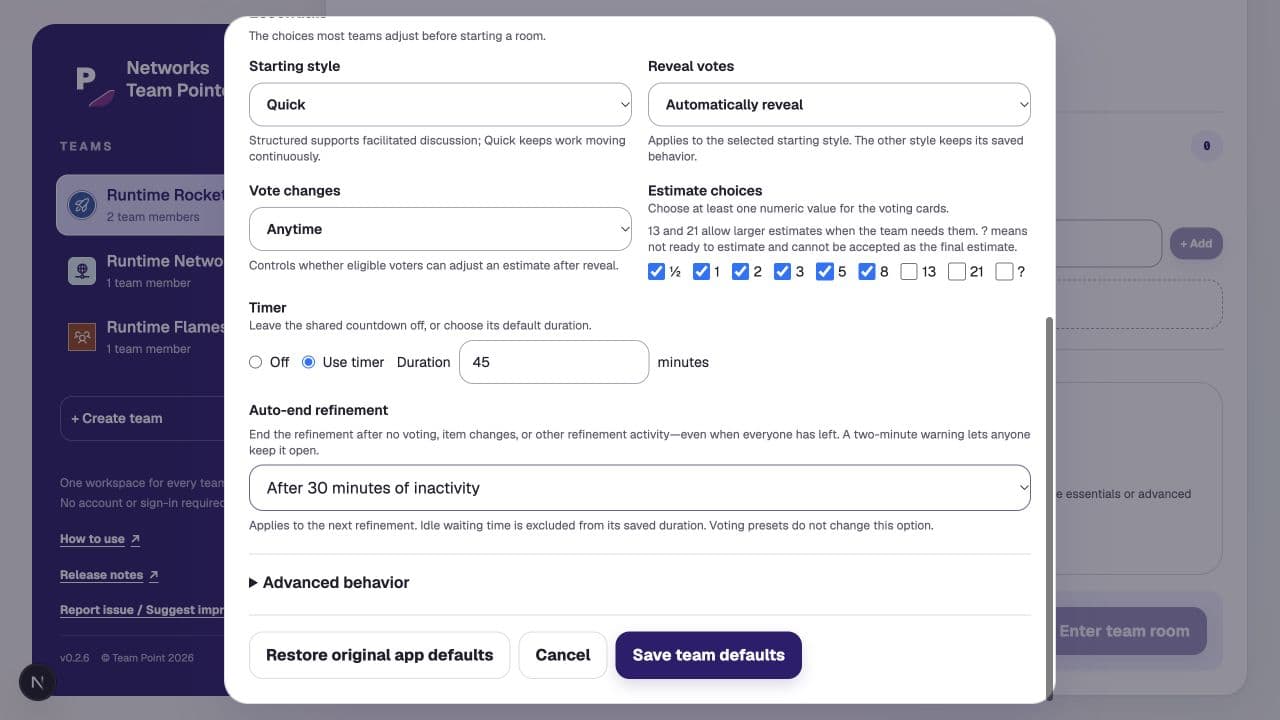
- Estimate cards may use any ordered subset of ½, 1, 2, 3, 5, 8, 13, 21, and ?, with at least one numeric card. Changes apply to the next refinement.
- Round snapshots keep the current round and saved history unchanged when settings change later.
- Elapsed records active session time, excluding room pauses.
- Timer is an optional countdown and does not automatically mutate voting or queue state.
- Auto-end refinement, below Timer, ends an inactive refinement after 30 or 45 minutes. It is separate from the countdown and uses the same Save/Cancel flow as the other options.
Pausing only the Timer stops the countdown, not refinement. To pause voting and queue activity too, use Pause refinement. To learn what restarts the inactivity countdown, see Automatic ending.
Changing a voting preset or choosing Restore original app defaults keeps the saved auto-end timeout. If a save only partly succeeds, the editor explains what was saved and keeps the remaining choice for retry.
Room controls
Take a break with Pause refinement, continue with Resume refinement, or finish the session with End refinement. These actions are available to the room's facilitators. The permanent team room stays available for the next session.
Open Room controls beside the clocks in the header by hovering or clicking. With a keyboard, press Enter or Arrow Down, then Tab through the actions. Escape closes the dropdown. Room options are managed under Edit team before refinement.
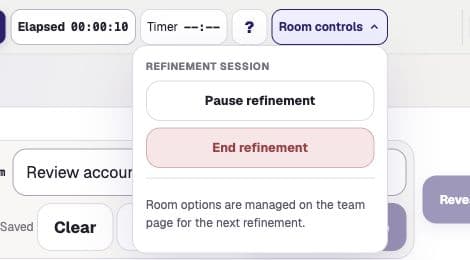
Pause for a break, then resume
- Voting and queue changes stop. The current item, submitted votes, revealed state, and history stay intact.
- Elapsed stops counting active session time. A running Timer freezes too.
- Participants can still join, recover their identity, or change availability. Joining does not resume the room.
- Choose Room controls → Resume refinement to continue the same round. A countdown that was already manually paused stays paused.
A pause is not an indefinite hold: the inactivity auto-end policy still applies. Use Keep refinement open when its warning appears if discussion is continuing.
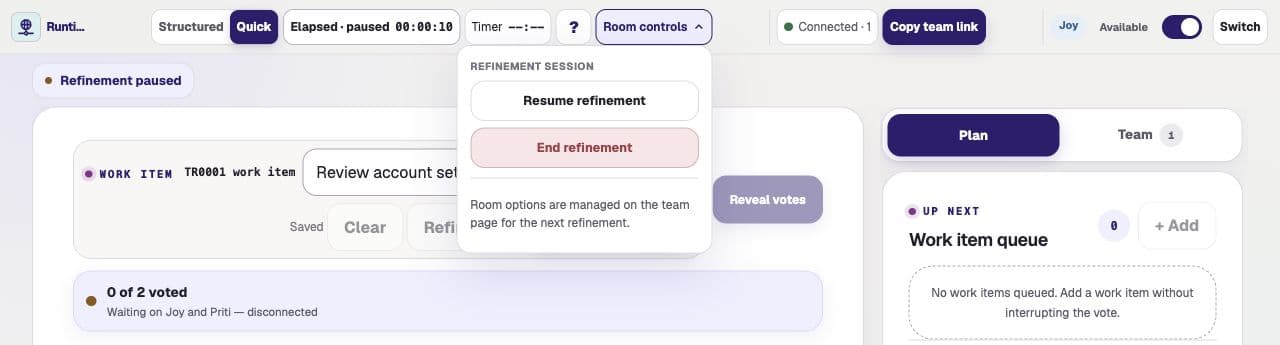
Finish this refinement
Choose Room controls → End refinement, then confirm with Finish refinement. Voting stops and the summary appears. Everyone stays in the team room; the permanent link still works. Use Cancel if you meant to pause instead.
Ending never accepts or saves an unfinished result as completed. Already saved results and unfinished work remain available for review.
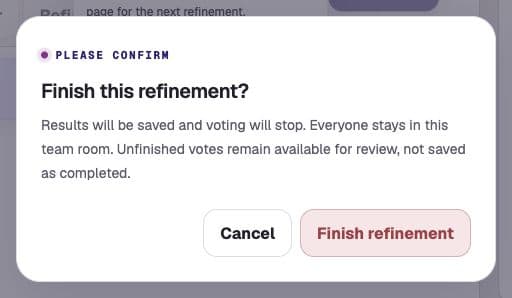
Prepare the next refinement
- Choose Prepare next refinement.A facilitator uses this button above the work item after the session ends.
- Choose unfinished items, if offered.Carry only the work you want to discuss again. Empty Quick placeholders are not unfinished work.
- Return to Ready.Fresh votes and elapsed time at zero replace the completed session on the canvas. Nothing starts voting automatically.
- Start when you need it.A facilitator chooses Start refinement for the next session. Use the same team link.
Read the session summary
The permanent team-room summary appears when refinement finishes. Older standalone rooms also show a checkpoint while paused. These figures count work items—not individual votes.
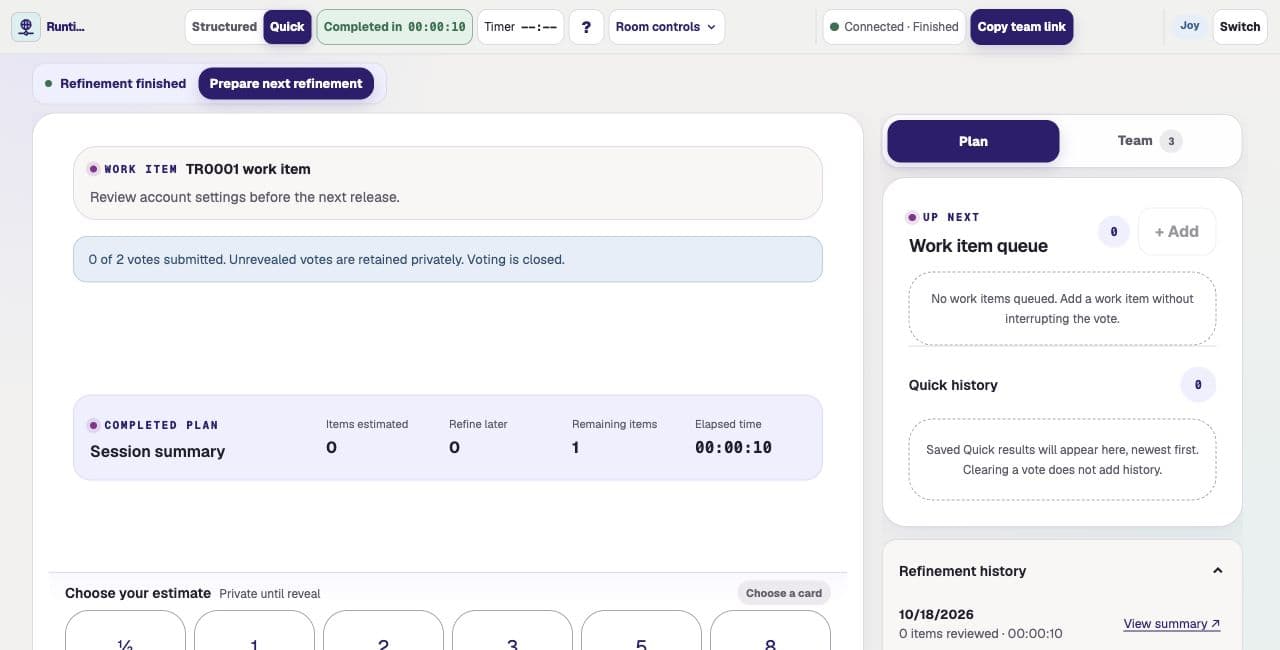
Open Plan → Refinement history → View summary for a completed session. The summary opens in a separate tab so you do not leave the current refinement. Its saved votes and results are read-only.
Using an older standalone room link?
Older standalone rooms use Pause room, Resume room, and End room. End room permanently closes that individual room; there is no Resume or Undo after ending. Saved results remain available for review. Use the permanent team link for future refinements.
Automatic ending
If a refinement is left running, it automatically ends after 30 minutes without refinement activity, or 45 minutes if your team selected that option. Only an active refinement is eligible; a room waiting at Ready is not.
- Successful vote changes, work-item changes, and other refinement actions restart the inactivity countdown. Simply keeping a tab open, joining, or reconnecting does not.
- A two-minute warning appears before automatic ending. Choose Keep refinement open if the team is still discussing. Any participant with a current room seat can do this; reconnect first if disconnected.
- The background check works even when everyone closes their browser or leaves. No one needs to keep the app open.
- Paused refinements can also auto-end. A pause stops active elapsed time, not the inactivity safety net.
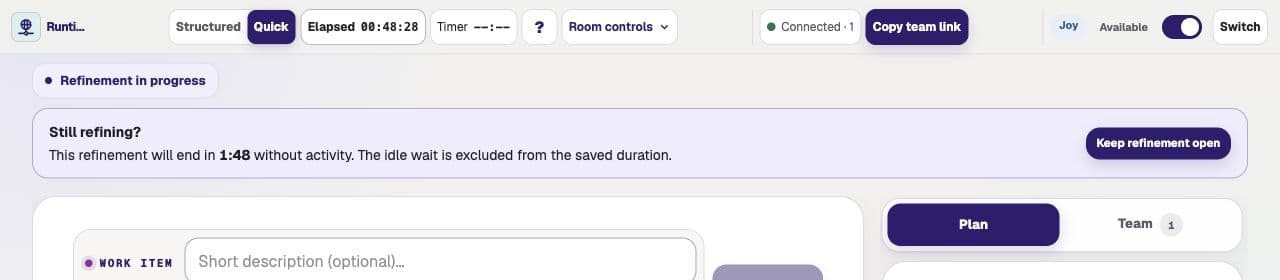
An auto-ended summary shows Time through last activity. It excludes room pauses and the idle wait before automatic ending. For example, if the last activity was at 20:15 of active refinement, the saved duration stays near 20:15—not 50:15 after a further 30-minute idle wait. Long discussions with no app activity cannot be measured exactly.
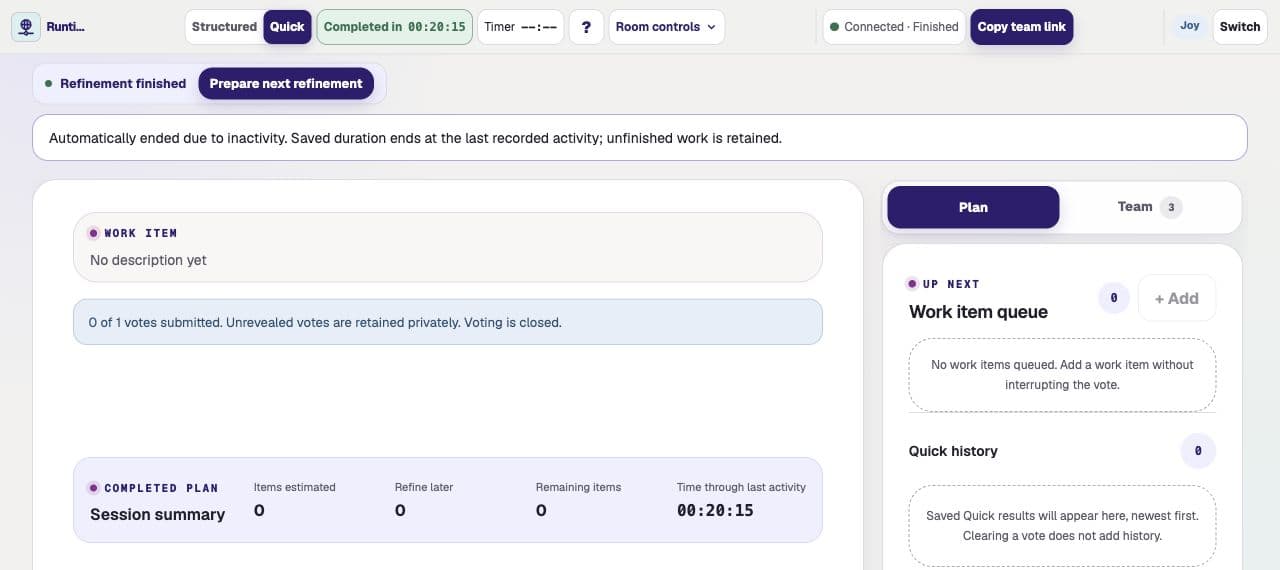
Use Prepare next refinement after an automatic ending, just as after a manual finish. To change the timeout for future sessions, use Edit team → Room options → Edit room options → Essentials → Auto-end refinement.
Reconnect and recovery
The application reloads the authoritative room after a refresh, suspended browser tab, or temporary connection loss.
- Wait for the indicator to return to Connected before taking another action.
- Use Try again if automatic recovery stops.
- Return with the same browser identity whenever possible.
- Use the facilitator-reviewed recovery flow when another browser must reclaim an assigned identity.
Disconnected seats are released after the team's configured timeout: 60 seconds for new teams by default. Existing saved team choices are kept. This is separate from the 30/45-minute auto-end policy and never deletes saved refinement history. If your seat has expired, choose your name again; another-browser ownership may still require recovery.
Votes and accepted estimates are stored independently of live Presence, so a temporary disconnect does not erase completed work.
Team maintenance
When the new portal is enabled, manage people directly from their cards. Use Add person for a new member, or open the ellipsis on an existing person's card. Edit team holds the team name, badge, and Room options for future refinements. With the portal experiment off, manage people through Edit team instead.
- Add person.Enter their name, an optional title, and a group. Voting eligible starts on; Default facilitator starts off. Review the two independent switches, then add the person. They appear alphabetically in their group.
- Edit name & role.Open the card's ellipsis to update their name, title, or group. Editing a shared person's name updates their name across teams; titles and membership choices belong to this team.
- Set eligibility and default facilitation.Use Voting eligible and Default facilitator independently. A facilitator may be a voter or a non-voter; enabling one switch never requires enabling the other.
- Remove from team.Open the ellipsis and confirm removal. This removes only this team membership, not the shared person from other teams. Use Undo from the confirmation feedback if it was a mistake.
For someone already on another team, the advanced shared-person option in Add person links their existing person record instead of creating another one. Check the selected name before saving.
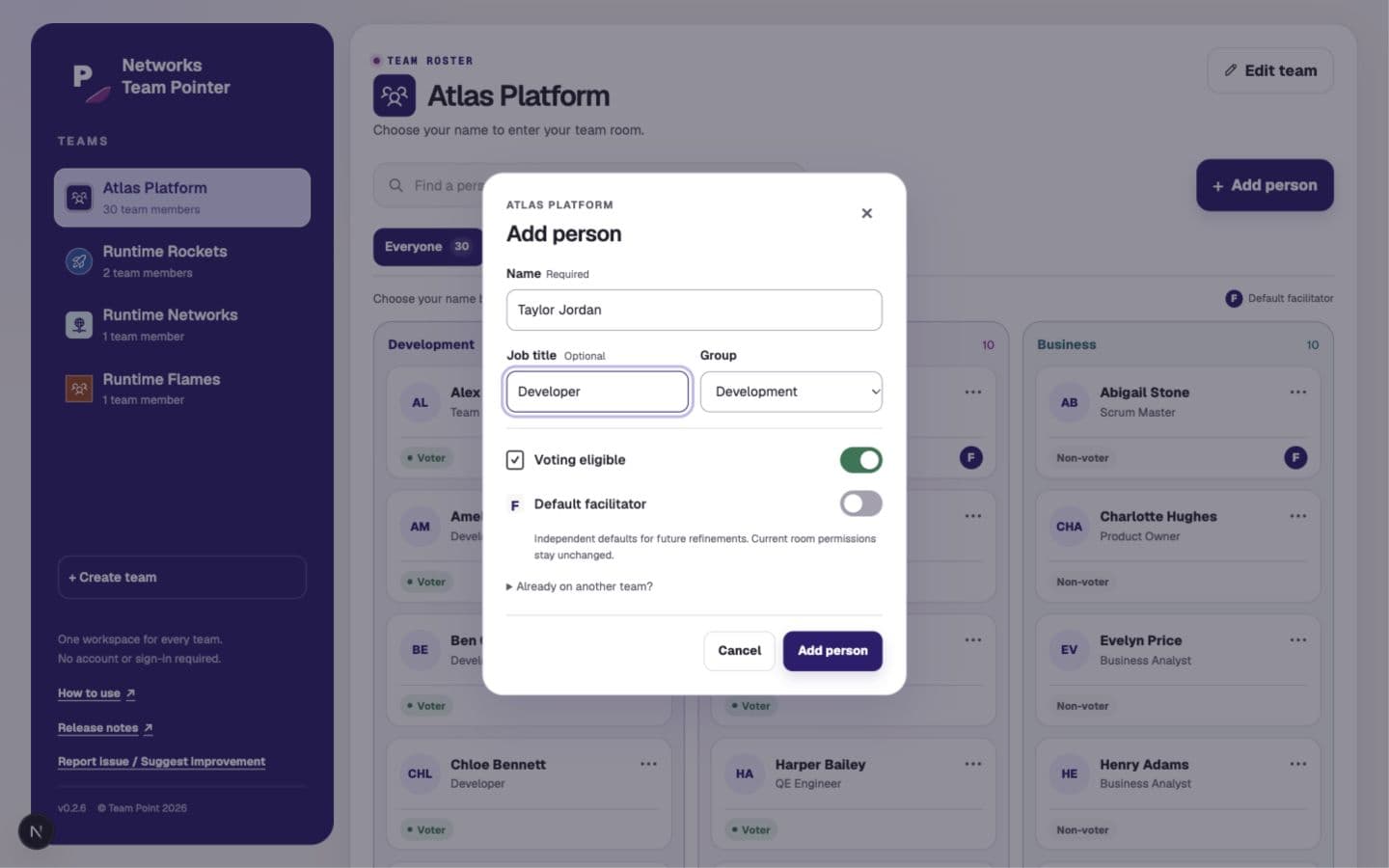
Changing membership, voting eligibility, or Default facilitator does not rewrite an existing room's captured roster or history, and does not grant or remove active facilitator authority in a refinement already underway. Removing someone from the team is different from Remove from room.
Existing rooms retain captured team, badge, roster, settings, voting, and estimate history after later configuration changes or permanent team deletion.
Use Report issue / Suggest improvement on the home or Help page to send a Bug or Enhancement. Choose a category, add a short title and useful details, and submit. Do not include credentials, personal data, or confidential work-item content. This feedback form is not a Jira integration.
The current version appears beside the copyright. Open Release notes from the home-page navigation for published changes listed by version using U.S. Central dates.
Networks Team Pointer does not verify administrators. Anyone with application access can change team configuration. Anonymous authentication supports technical session identity and auditing, not employee authorization.
Room Dojo
When the experimental Room Dojo flag is enabled, open a team's management view and choose Open Room Dojo. The Dojo previews that team's saved room settings with clearly marked simulated roster members without creating or joining a real room.
- 1. Choose a simulation names the behavior you want to preview, who should participate, the eligible-voter count, and the playback speed. My team uses the current roster; 5-voter and 13-voter demos add clearly labeled simulated voters only when needed.
- 2. Watch the team vote keeps readiness, hidden votes, reveal, alignment, status, and progress together. Pause/Resume is one context-sensitive control. Manual voting and the full privacy-safe activity timeline remain available in collapsed sections.
- 3. Adjust the room compares the saved defaults with a temporary local copy of all 49 room settings, counts changed settings, and keeps the complete editor behind Edit preview settings.
- Restart with preview settings applies the complete valid draft to a fresh practice round without starting playback. A changed draft never silently alters a running simulation, and an incompatible scenario explains what must change.
- Save as team defaults is an explicit confirmed action for future rooms. It validates the complete draft and uses the existing revision conflict protection. Existing rooms and immutable snapshots do not change.
- Scenario data is never saved. The Dojo never creates rooms, memberships, Presence, votes, rounds, work items, history, timers, accepted estimates, recovery requests, or room Realtime channels.
- Refresh or leaving restarts it. The temporary draft and simulated votes are deliberately discarded. Back to teams warns when a different preview would be lost.
The feature flag only controls whether the Dojo is visible. It does not grant access to team data or permission to change defaults. Deterministic simulation is used instead of AI so identical inputs produce the same explainable action sequence.
Future features
These ideas describe the current product direction. They are not active controls and may change before implementation.
More targeted feature trials
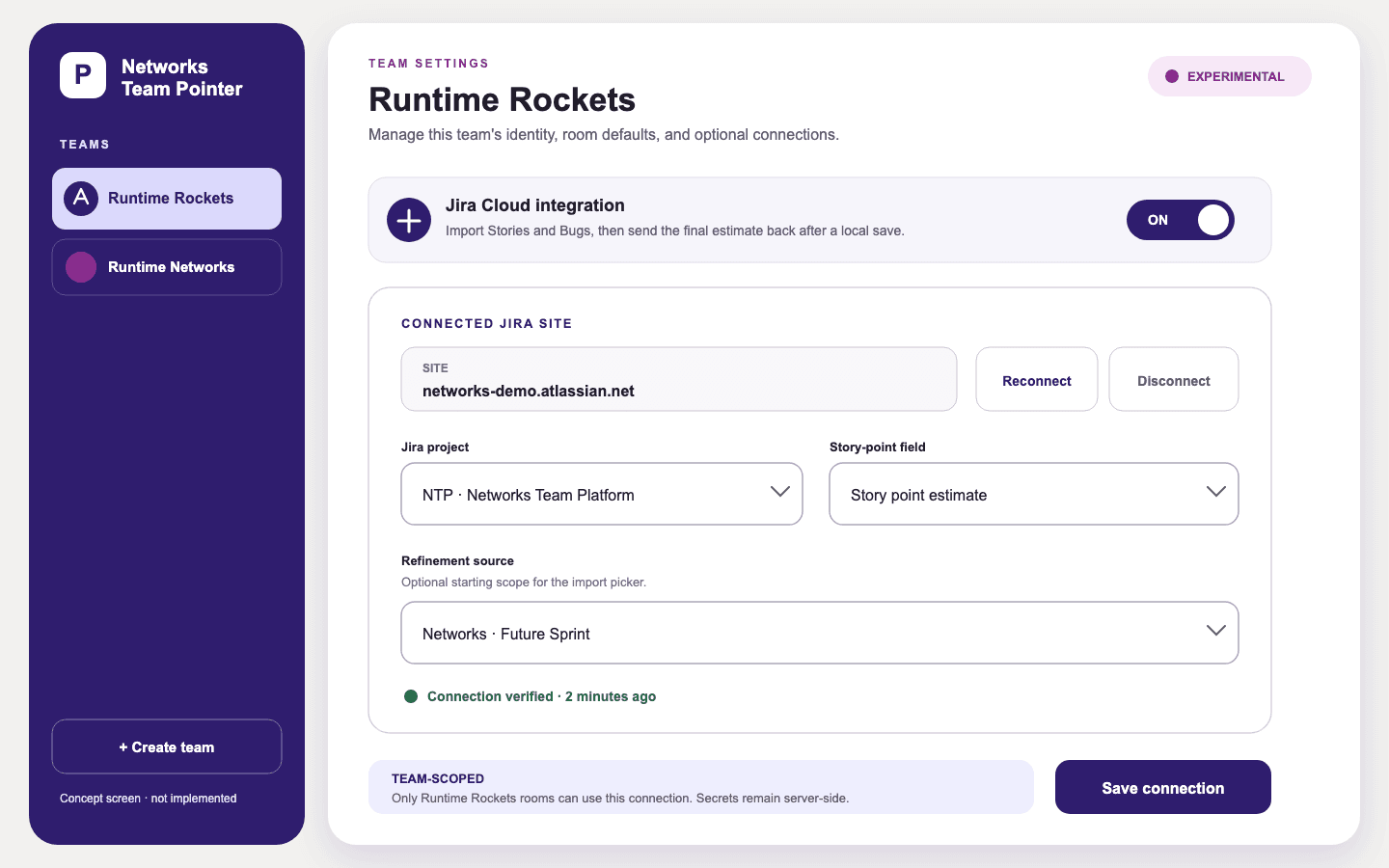
A global feature flag already controls Room Dojo visibility. Team-specific trials and integration controls remain possible future extensions, not settings available to teams today.
Jira-assisted refinement
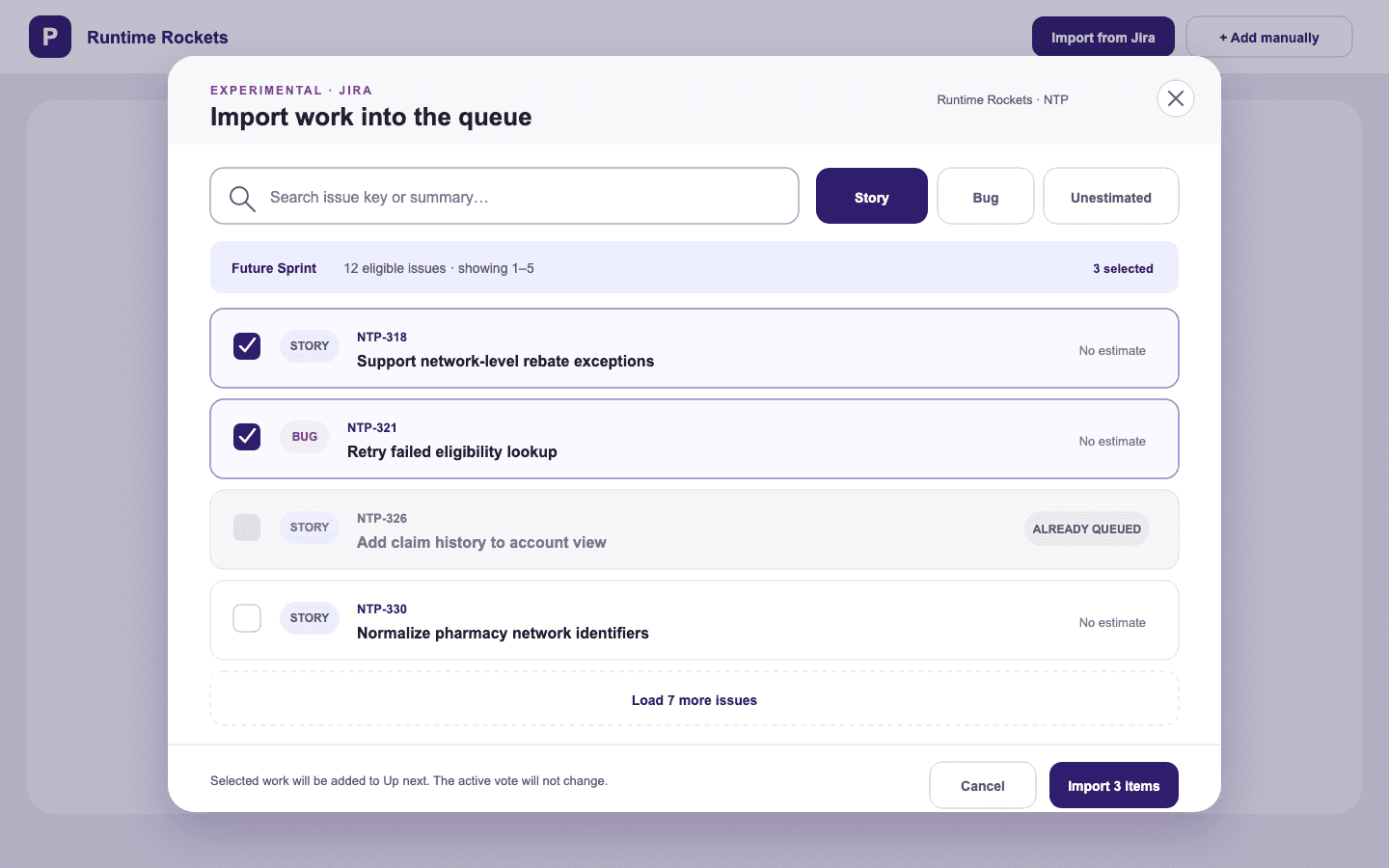
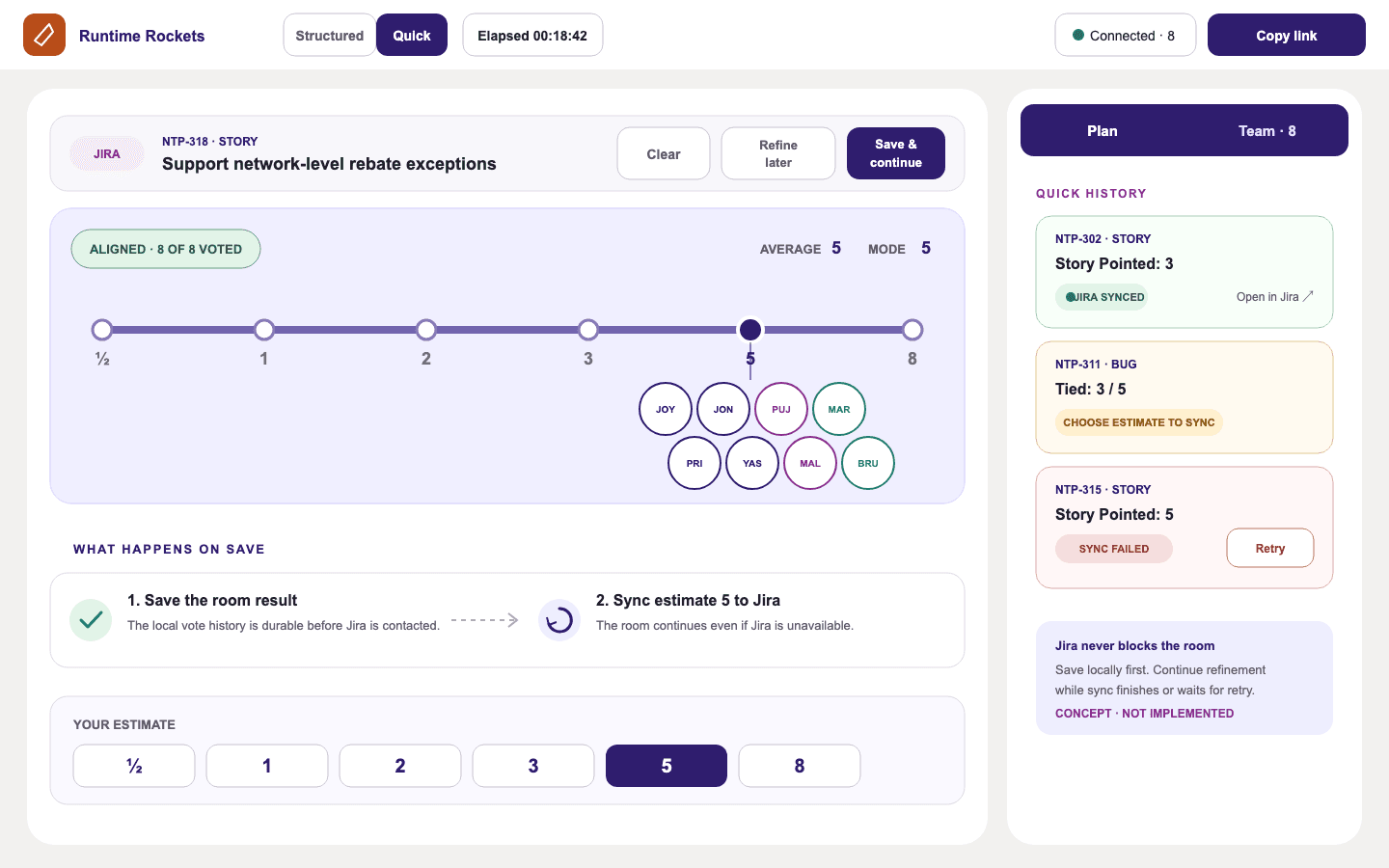
A deliberately narrow Jira Cloud demo would search work items, preserve descriptive source metadata such as issue type and external key, then write the accepted estimate back after Save & continue.
Spaces and team discovery
An Organization → Space → Team hierarchy, supported by team search and recent teams, would keep a larger installation easy to navigate.
Enterprise handoff
Company SSO, role-based administration, operational ownership, and a possible Kotlin, Spring Boot, GCP, and PostgreSQL backend remain longer-term integration work.
It is a refinement helper—not a Jira replacement. The local estimate is saved first, external synchronization is non-blocking, and an integration failure must never interrupt the room.